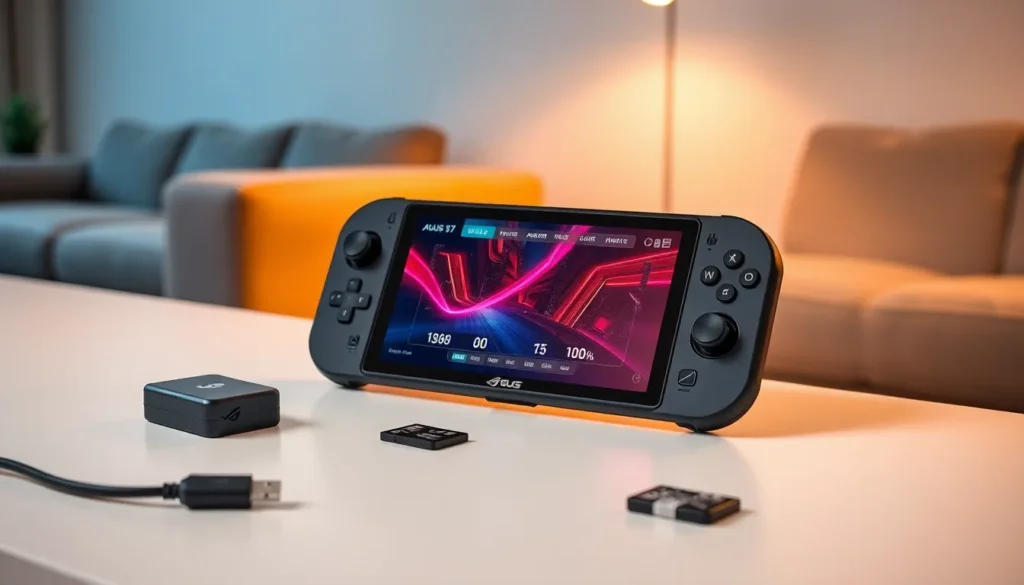

The Asus ROG Ally packs serious power into a handheld form factor, but out-of-the-box settings won’t give players the best experience. These Asus ROG Ally tips help users squeeze more performance, battery life, and enjoyment from their device. Whether someone just unboxed their Ally or has owned one for months, a few smart adjustments can make a real difference. This guide covers display tweaks, battery management, software mastery, control customization, and game management, everything needed to get the most from this Windows-based gaming handheld.
Table of Contents
ToggleKey Takeaways
- Switch between Silent (9W), Performance (15W), and Turbo (25W+) modes to balance frame rates and battery life based on the game you’re playing.
- Reduce screen brightness to 50% and switch from 120Hz to 60Hz to extend your ROG Ally’s battery life by up to 45 minutes or more.
- Create game-specific profiles in Armoury Crate SE to customize TDP limits, fan curves, and controller mapping for each title.
- Map the back paddles (M1 and M2) to frequently used actions like dodge or sprint to keep your thumbs on the sticks during intense gameplay.
- Use a fast UHS-II microSD card (A2 rated, 150MB/s+) to expand storage and keep demanding AAA games on internal storage for the best load times.
- Disable HD texture packs and use compression tools like CompactGUI to save 30-50% storage space without noticeable visual loss on the 7-inch screen.
Optimize Your Display and Performance Settings
The ROG Ally features a stunning 1080p display with a 120Hz refresh rate. Players should take advantage of both.
First, users need to decide between resolution and frame rate priorities. For fast-paced games like shooters or racing titles, dropping to 720p while maintaining 120Hz delivers smoother gameplay. Story-driven games benefit more from native 1080p at 60Hz. The Windows display settings menu handles resolution changes, while individual games control frame rate caps.
The Asus ROG Ally tips that matter most involve the performance modes. Users can access these through the Command Center by pressing the dedicated button on the left side. Three modes exist:
- Silent Mode: Runs at 9W TDP, ideal for indie games or visual novels
- Performance Mode: Balances power at 15W TDP for most AAA titles
- Turbo Mode: Pushes to 25W+ TDP when plugged in for maximum frames
Variable Refresh Rate (VRR) support through AMD FreeSync eliminates screen tearing. Players should enable this in Windows settings under Display > Graphics > Change default graphics settings. Toggle on VRR for a cleaner visual experience.
One often-overlooked tip: disable Windows animations and transparency effects. These steal GPU resources. Head to Settings > Accessibility > Visual Effects and turn off transparency and animation effects. The system feels snappier, and games gain a few extra frames.
Extend Battery Life for Longer Gaming Sessions
Battery life represents the biggest challenge for any gaming handheld. The ROG Ally ships with a 40Wh battery that drains quickly under heavy loads. Smart users apply these Asus ROG Ally tips to stretch playtime.
Screen brightness impacts battery more than most realize. Dropping from 100% to 50% brightness adds roughly 30-45 minutes of gameplay. The 7-inch display looks great at lower brightness levels anyway, especially in dim environments.
Refresh rate matters too. Switching from 120Hz to 60Hz in Windows display settings reduces power consumption significantly. Many games don’t hit 120fps anyway, so players lose nothing while gaining battery life.
The performance mode selection discussed earlier applies here as well. Silent Mode at 9W TDP can double battery life compared to Turbo Mode. Players tackling turn-based RPGs or older titles should default to Silent.
Background processes drain power silently. Users should close unnecessary apps before gaming. Windows Task Manager shows what’s running. Common culprits include:
- Browser tabs left open
- Discord running in the background
- Windows Update downloading files
- Cloud sync services like OneDrive
Another effective Asus ROG Ally tip involves the Wi-Fi radio. Offline games don’t need connectivity. Enabling airplane mode saves power and prevents random update interruptions during gameplay.
The ROG Ally supports 65W USB-C charging. Players should invest in a compact GaN charger for travel. Many cafes and airports offer USB-C ports now, making top-ups convenient during longer trips.
Master the Armoury Crate SE Software
Armoury Crate SE serves as the control hub for the ROG Ally. Mastering this software unlocks the device’s full potential.
The main interface displays installed games from multiple launchers, Steam, Xbox Game Pass, Epic Games Store, and others. Users can add non-launcher games manually by clicking the + button. This creates a unified library without jumping between apps.
Game-specific profiles represent powerful Asus ROG Ally tips that many overlook. Each title can have custom settings for:
- TDP limits
- GPU clock speeds
- Fan curves
- Display refresh rate
- Controller mapping
Players configure these by selecting a game and clicking the profile icon. A demanding title like Cyberpunk 2077 might use Turbo Mode with aggressive fan curves, while Hades runs perfectly on Silent Mode.
The Command Center overlay (left button below the D-pad) provides quick access during gameplay. Users can monitor real-time stats including:
- Current FPS
- CPU and GPU temperatures
- Battery percentage and estimated time remaining
- Current TDP usage
This information helps players adjust settings on the fly. If temperatures climb above 85°C consistently, the game might need graphics settings reduced.
Armoury Crate SE also handles system updates. Regular firmware updates improve stability and sometimes boost performance. Users should check for updates weekly by going to Settings > Update Center within the app.
Customize Controls and Button Mapping
The ROG Ally features a standard controller layout plus two programmable back buttons. Custom mapping transforms how games feel and play.
Within Armoury Crate SE, users access button remapping through controller settings. The back paddles (M1 and M2) can replicate any other button or trigger keyboard shortcuts. Popular configurations include:
- M1 mapped to dodge/roll (usually B button)
- M2 mapped to sprint (usually left stick click)
- Back buttons handling screenshot or quick save functions
These Asus ROG Ally tips eliminate awkward hand positions during intense moments. Players no longer need to take thumbs off sticks to press face buttons.
The touchscreen adds another input method. Many PC games support mouse input, and the touchscreen works as a trackpad. Strategy games and point-and-click adventures benefit from direct screen interaction.
Analog stick dead zones deserve attention too. Factory settings might feel sluggish to some players. Armoury Crate SE allows dead zone adjustment from 0% to 20%. Start low and increase only if stick drift becomes noticeable.
Trigger sensitivity also accepts customization. Racing game fans might prefer linear trigger response, while shooter players often want hair triggers with minimal travel distance. Test different configurations to find personal preferences.
Steam Input provides additional options for Steam library games. Some players prefer Steam’s controller configuration over Armoury Crate because it offers community-shared profiles for specific games.
Install and Manage Games Efficiently
The ROG Ally ships with 512GB of internal storage. Modern games consume 50-100GB each, making space management critical.
A microSD card expands storage affordably. The device supports UHS-II cards up to 1TB. Players should buy cards rated A2 with at least 150MB/s read speeds for acceptable load times. Slower cards create noticeable delays during gameplay.
These Asus ROG Ally tips help manage limited space effectively:
- Install demanding AAA games on internal storage for fastest load times
- Move older or indie games to microSD
- Delete completed games, they can always be redownloaded
- Use Steam’s storage manager to identify space hogs
Xbox Game Pass works excellently on the ROG Ally. The cloud gaming option lets players try games before committing storage space. If a title runs well via streaming, users can decide whether a local install makes sense.
Game compression tools like CompactGUI reduce install sizes by 30-50% with minimal performance impact. This Windows utility applies NTFS compression to game folders. Results vary by title, so users should research specific games before compressing.
Another storage-saving Asus ROG Ally tip involves disabling HD texture packs. Many games download 20-40GB of optional high-resolution textures. On a 7-inch screen at arm’s length, players rarely notice the difference between medium and ultra textures. The storage savings prove more valuable.
Finally, users should regularly clear the Windows temp folder and empty the recycle bin. These locations accumulate gigabytes of unnecessary data over time. A monthly cleanup keeps storage available for what matters, more games.