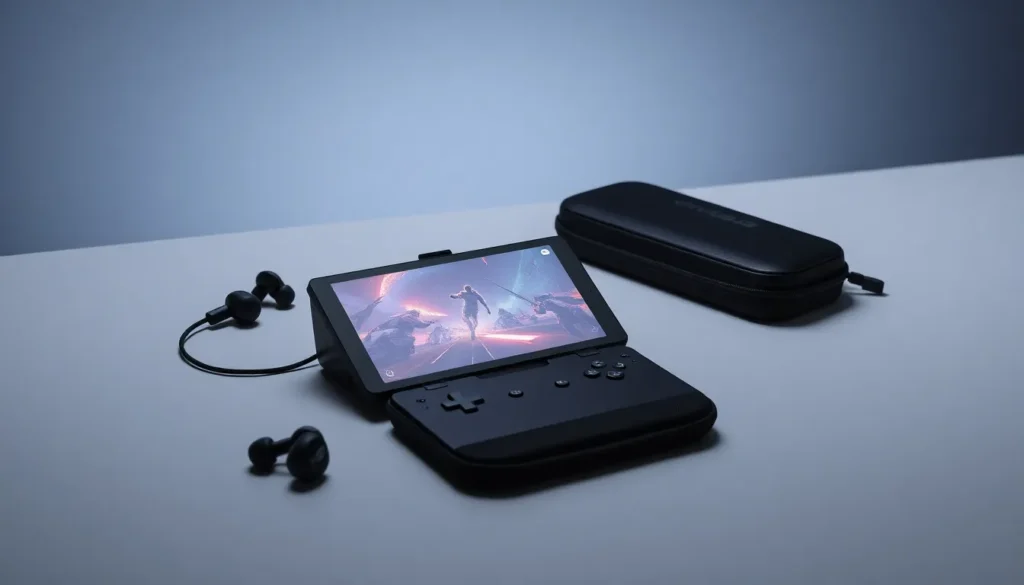

The ASUS ROG Ally for beginners can feel overwhelming at first. This handheld gaming PC packs serious power into a portable form factor. It runs Windows 11 and plays AAA titles on the go. But where do you start?
This guide covers everything new owners need to know. From initial setup to game recommendations, readers will learn how to get the most from their ROG Ally. Whether someone just unboxed their device or is considering a purchase, this article breaks down the essentials in plain terms.
Table of Contents
ToggleKey Takeaways
- The ASUS ROG Ally for beginners offers a familiar Windows 11 experience, making the learning curve gentler than expected for new users.
- Set up Armoury Crate SE first to manage performance modes, button mapping, and optimize your gaming experience.
- Use AMD’s FSR and RSR features to boost frame rates on demanding games without sacrificing too much visual quality.
- Start with indie games like Hades and Vampire Survivors to learn the controls while enjoying smooth 120fps gameplay.
- Extend battery life by closing background apps and using Performance mode for a balance of power and playtime.
- Invest in essential accessories like a carrying case, USB-C dock, and microSD card to enhance your ROG Ally experience.
What Is the ASUS ROG Ally?
The ASUS ROG Ally is a handheld gaming PC made by ASUS Republic of Gamers. It launched in June 2023 and quickly became one of the most popular portable gaming devices on the market.
Unlike the Nintendo Switch or Steam Deck, the ROG Ally runs a full version of Windows 11. This means users can access Steam, Epic Games Store, Xbox Game Pass, and other PC gaming platforms. They can also run productivity apps, browse the web, and use the device as a compact computer.
The ROG Ally features a 7-inch touchscreen display with a 120Hz refresh rate. It uses AMD’s custom Z1 or Z1 Extreme processor, depending on the model. The Z1 Extreme version delivers performance comparable to mid-range gaming laptops.
For beginners, the ROG Ally offers a familiar Windows experience in a portable package. The learning curve is gentler than expected because most users already know how Windows works. The device includes built-in controls similar to a traditional gamepad, plus gyroscope support for motion aiming.
Key Features and Specifications
Understanding the ROG Ally’s hardware helps beginners make better decisions about games and settings.
Display
The 7-inch IPS touchscreen runs at 1920×1080 resolution. It supports a 120Hz refresh rate, which makes games look smoother than 60Hz alternatives. The screen reaches 500 nits of brightness, so outdoor visibility is decent.
Processor
The Z1 Extreme model uses an AMD Ryzen Z1 Extreme chip. It has 8 cores, 16 threads, and integrated RDNA 3 graphics. This chip handles most modern games at medium to high settings. The standard Z1 model costs less but offers reduced performance.
Memory and Storage
Both models include 16GB of LPDDR5 RAM. Storage options start at 512GB via a fast NVMe SSD. Users can expand storage with a microSD card slot that supports up to 2TB cards.
Battery
The 40Wh battery provides 2-3 hours of gaming on demanding titles. Less intensive games stretch this to 5-6 hours. ASUS includes a 65W charger that refills the battery in about 90 minutes.
Controls
The ROG Ally features two analog sticks, a D-pad, ABXY buttons, bumpers, and analog triggers. Two back paddles provide extra inputs. The Armoury Crate button launches ASUS’s game management software instantly.
Setting Up Your ROG Ally for the First Time
First-time setup takes about 30 minutes. Follow these steps to get started with the ROG Ally.
Initial Boot
Press the power button and wait for Windows 11 setup to appear. Connect to Wi-Fi and sign in with a Microsoft account. Windows will download updates automatically, this step can take 15-20 minutes.
Armoury Crate SE
After Windows finishes updating, open Armoury Crate SE. This app manages performance modes, button mapping, and game library organization. Beginners should start with “Performance” mode for a balance of power and battery life.
Install Gaming Platforms
Download the gaming platforms you plan to use. Steam is the most popular choice. Xbox app users get access to Game Pass titles. Epic Games Store offers free games weekly. Install these from their official websites or the Microsoft Store.
Update Drivers
Visit the ASUS support page and download MyASUS. This utility checks for BIOS updates, driver updates, and firmware patches. Keeping the ROG Ally updated improves stability and performance.
Adjust Display Settings
Windows defaults to 150% display scaling. Some users prefer 125% or 100% for more screen space. Test different options in Settings > Display to find what works best.
Essential Tips for New Users
These tips help beginners get more from their ASUS ROG Ally experience.
Use Command Center
Hold the Armoury Crate button to open Command Center. This overlay lets users switch performance modes, adjust screen brightness, and monitor battery without leaving their game.
Map the Back Paddles
The rear buttons are customizable in Armoury Crate. Many players map them to commonly used keys like sprint, reload, or dodge. This keeps thumbs on the sticks during action.
Try FSR and RSR
AMD’s FidelityFX Super Resolution (FSR) and Radeon Super Resolution (RSR) boost frame rates by upscaling lower resolutions. Enable these in game settings or AMD Adrenalin software for better performance on demanding titles.
Manage Background Apps
Windows runs many background processes that drain battery. Close unnecessary apps and disable startup programs to extend playtime. The ROG Ally for beginners works best with a lean Windows installation.
Invest in Accessories
A carrying case protects the device during travel. A USB-C dock enables TV play with external controllers. A larger microSD card expands game storage affordably.
Best Games and Apps to Try First
New ROG Ally owners should test their device with these recommended games and apps.
Games That Run Great
- Hades – Smooth 120fps gameplay with gorgeous visuals
- Vampire Survivors – Light on resources, perfect for learning the controls
- Persona 5 Royal – Runs at 60fps with high settings
- Hi-Fi Rush – Optimized well and looks stunning on the display
- Stardew Valley – Ideal for long battery life sessions
AAA Titles Worth Testing
- Cyberpunk 2077 – Playable at 30-40fps with medium settings and FSR
- Elden Ring – Solid performance at 720p with adjusted settings
- Hogwarts Legacy – Requires FSR but delivers an impressive portable experience
Useful Apps
- Playnite – Combines all game libraries into one launcher
- Handheld Companion – Adds extra controller customization options
- PowerToys – Microsoft’s utility collection improves Windows usability
The ASUS ROG Ally handles indie games at maximum settings easily. AAA titles need some tweaking, but results impress for a handheld device. Game Pass provides excellent value for beginners since it offers hundreds of games for a monthly fee.